
VantagePay for WooCommerce
The VantagePay plugin adds VantagePay as a payment method in your WooCommerce store, so customers can pay by card, mobile money, Apple Pay or Google Pay. It works with both the Classic and the Block-based WooCommerce checkout.
Try it first
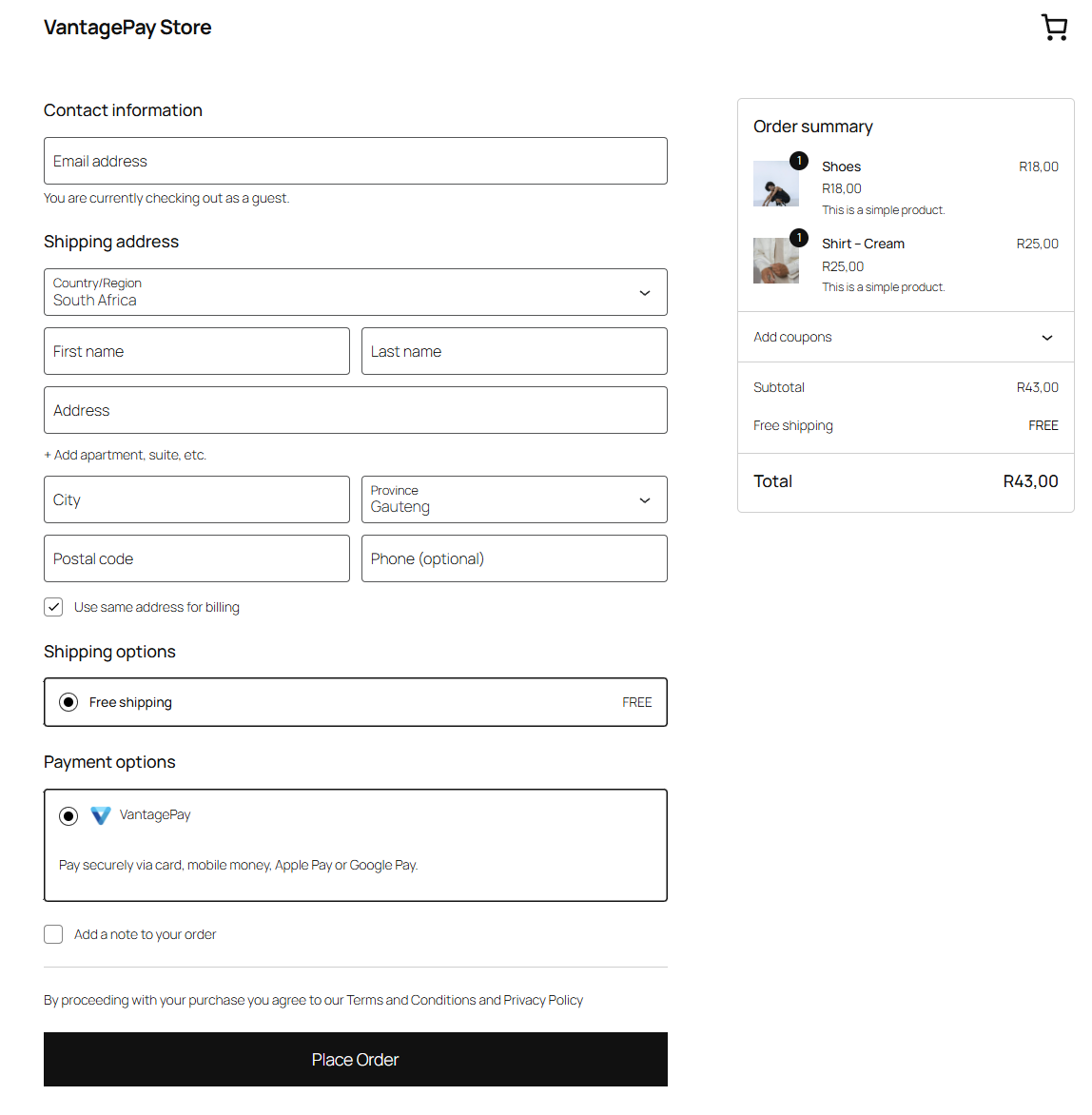
You do not need to install anything to see how the plugin behaves. A fully configured demo store is running at woocommerce.vantagepay.com.
The demo store is stocked with fake products and every payment is simulated, so you can place as many orders as you like at no cost. Because payments are simulated, any valid card number or mobile number will complete a checkout - there are no special test values to look up.
To try it: add a product to the cart, go to checkout, choose VantagePay as the payment method, and complete the payment.
INFO
The demo store is pre-configured and read-only from a settings point of view. Its credentials cannot be changed and are not usable in your own store - you receive your own when you sign up.
Requirements
| Requirement | Minimum version |
|---|---|
| WordPress | 6.5 |
| WooCommerce | 8.0 |
| PHP | 8.1 |
Your checkout must also be served over HTTPS. This is a requirement for live payments and good practice for testing.
What you receive at signup
Register as a merchant with VantagePay and you will be issued:
- A test hosted payment page URL and a live hosted payment page URL.
- A merchant reference, used for reconciliation.
- A test webhook signing secret and a live webhook signing secret.
You will enter these into the plugin settings. There is no licence key - your VantagePay merchant registration is what entitles you to use the plugin, along with support and updates.
Download
Download VantagePay for WooCommerce (.zip) (coming soon)
Install the plugin
Option A - from the WordPress admin
- Go to Plugins → Add New → Upload Plugin.
- Choose the
.zipfile you downloaded and select Install Now. - Select Activate Plugin.
Option B - manually
- Unzip the download.
- Copy the
vantagepay-for-woocommercefolder intowp-content/plugins/on your server. - Go to Plugins in the WordPress admin and activate VantagePay for WooCommerce.
Enable the gateway
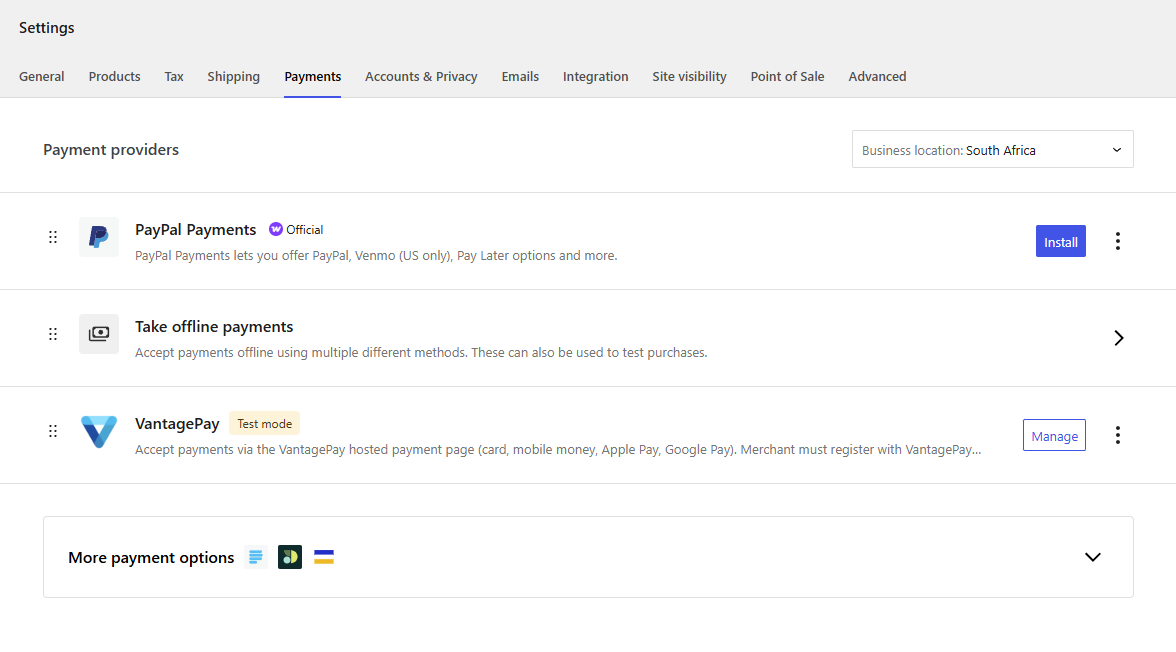
- Go to WooCommerce → Settings → Payments.
- Find VantagePay in the list of payment methods and switch it on.
- Select Manage to open the settings.
Basic settings
Start in test mode. These five fields are all you need to take your first test payment:
| Setting | What to enter |
|---|---|
| Enable / Disable | Tick to enable the gateway. |
| Title | The name customers see at checkout. Defaults to VantagePay. |
| Description | The text shown beneath the title at checkout. |
| Test Mode | Leave ticked while testing. |
| Test Hosted Payment URL | The test URL VantagePay issued you at signup. |
| Test Webhook Signing Secret | The test signing secret VantagePay issued you at signup. |
Select Save changes.
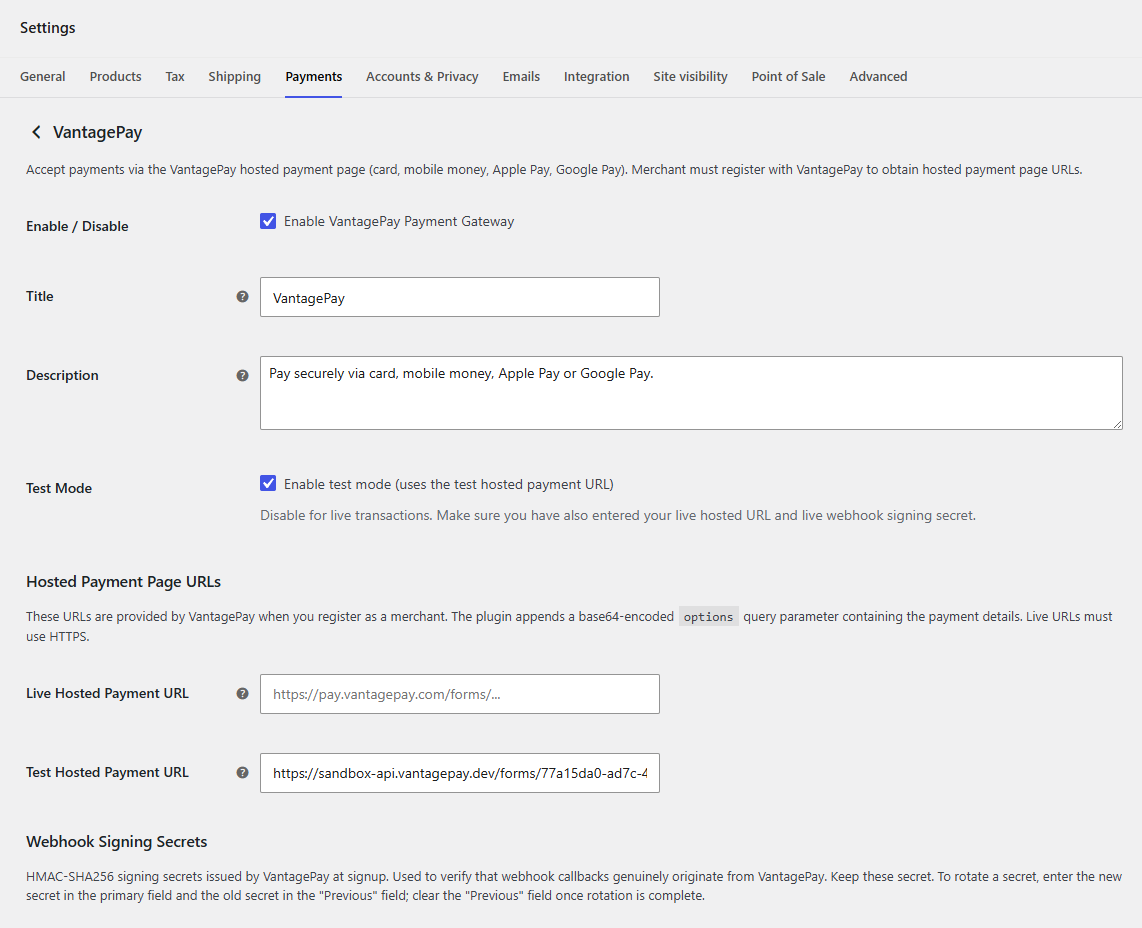
Settings reference
Every field on the settings screen, in the order it appears.
General
| Setting | Type | Default | Description |
|---|---|---|---|
| Enable / Disable | Checkbox | Off | Turns the VantagePay gateway on or off. |
| Title | Text | VantagePay | The payment method name shown to the customer at checkout. |
| Description | Text area | Pay securely via card, mobile money, Apple Pay or Google Pay. | The payment method description shown to the customer at checkout. |
Environment
| Setting | Type | Default | Description |
|---|---|---|---|
| Test Mode | Checkbox | On | When ticked, the plugin uses your test hosted payment URL and test signing secret. Untick this for live transactions. |
Hosted payment page URLs
These URLs are issued by VantagePay when you register as a merchant.
| Setting | Type | Default | Description |
|---|---|---|---|
| Live Hosted Payment URL | URL | Empty | Your live hosted payment page URL. Must use HTTPS. |
| Test Hosted Payment URL | URL | Empty | Your test hosted payment page URL. HTTPS, or localhost for local development. |
Webhook signing secrets
VantagePay signs the callbacks that tell your store whether a payment succeeded. These secrets let the plugin verify those callbacks are genuine, so treat them like passwords.
| Setting | Type | Default | Description |
|---|---|---|---|
| Live Webhook Signing Secret | Password | Empty | Your live signing secret. |
| Live Previous Webhook Secret (Rotation) | Password | Empty | Used only while rotating your live secret. See Rotating a signing secret. |
| Test Webhook Signing Secret | Password | Empty | Your test signing secret. |
| Test Previous Webhook Secret (Rotation) | Password | Empty | Used only while rotating your test secret. |
Rotating a signing secret
When VantagePay issues you a replacement secret, you can switch over without losing in-flight payments:
- Put the new secret in the main field (for example Live Webhook Signing Secret).
- Put the old secret in the matching Previous field.
- Save. Both secrets are now accepted.
- Once no more callbacks are expected against the old secret, clear the Previous field and save again.
Payment methods
| Setting | Type | Default | Description |
|---|---|---|---|
| Enable Card Payments | Checkbox | On | Lets customers pay with a credit or debit card. |
| Enable Mobile Money | Checkbox | On | Lets customers pay with mobile money, such as M-Pesa or MTN MoMo. |
Payment notifications
Both fields are optional and accept comma-separated lists.
| Setting | Type | Default | Description |
|---|---|---|---|
| Notification Email Addresses | Text | Empty | Email addresses notified when a payment completes, for example owner@example.com, admin@example.com. |
| Notification Mobile Numbers | Text | Empty | Mobile numbers notified when a payment completes, for example +27820000000, +27831111111. |
Branding
| Setting | Type | Default | Description |
|---|---|---|---|
| Logo URL | URL | Empty | The logo shown on the payment page. Optional - VantagePay uses your registered logo if this is left empty. |
Debug
| Setting | Type | Default | Description |
|---|---|---|---|
| Debug Logging | Checkbox | Off | Writes plugin events to the WooCommerce log. Useful when diagnosing a problem; leave off in normal operation. |
Place a test order
With Test Mode ticked and your test credentials saved:
- Add a product to the cart on your own store and go to checkout.
- Choose VantagePay and place the order.
- Complete the payment on the VantagePay payment page.
- Go to WooCommerce → Orders and confirm the order has moved off Pending payment.
A successful payment moves the order to Processing or Completed, depending on your WooCommerce settings and whether the products are downloadable. A payment still in progress shows as On hold, and a declined or abandoned payment shows as Failed.
Going live
- Enter your Live Hosted Payment URL and Live Webhook Signing Secret.
- Untick Test Mode.
- Confirm your checkout is served over HTTPS.
- Save changes.
- Place one small real order to confirm end-to-end behaviour, then refund it outside WooCommerce if required.
Troubleshooting
VantagePay does not appear at checkout
- Confirm the plugin is activated under Plugins.
- Confirm Enable / Disable is ticked in the plugin settings.
- Confirm the hosted payment URL for the current mode is filled in - the test URL when Test Mode is on, the live URL when it is off.
- Confirm the store currency and the customer's country are supported by your VantagePay merchant account.
Orders stay on "Pending payment" after a successful payment
The order status is set by a callback from VantagePay to your store, so:
- Your store must be reachable from the internet. A local or firewalled site cannot receive callbacks, which is why the demo store is the easiest way to see the full flow.
- The signing secret must match the mode you are in. A live secret with Test Mode on, or vice versa, causes callbacks to be rejected.
- Confirm the WordPress REST API is reachable. The plugin listens at
/wp-json/vantagepay/v1/webhook; if a security plugin blocks the REST API, callbacks will not arrive.
Checking the logs
- Tick Debug Logging in the plugin settings and save.
- Reproduce the problem.
- Go to WooCommerce → Status → Logs and select the
vantagepaylog source.
Untick Debug Logging when you are finished.
Limitations
Refunds are not yet supported from within WooCommerce. Refund a VantagePay transaction through your VantagePay merchant channels, then update the order in WooCommerce manually.